Working with GIFs in PolishSprite: Complete Guide
PolishSprite offers powerful tools for editing animated GIFs with frame-by-frame precision. This comprehensive guide will walk you through how to upload GIFs, manage frames, apply effects and save your animations.
Getting Started with GIFs
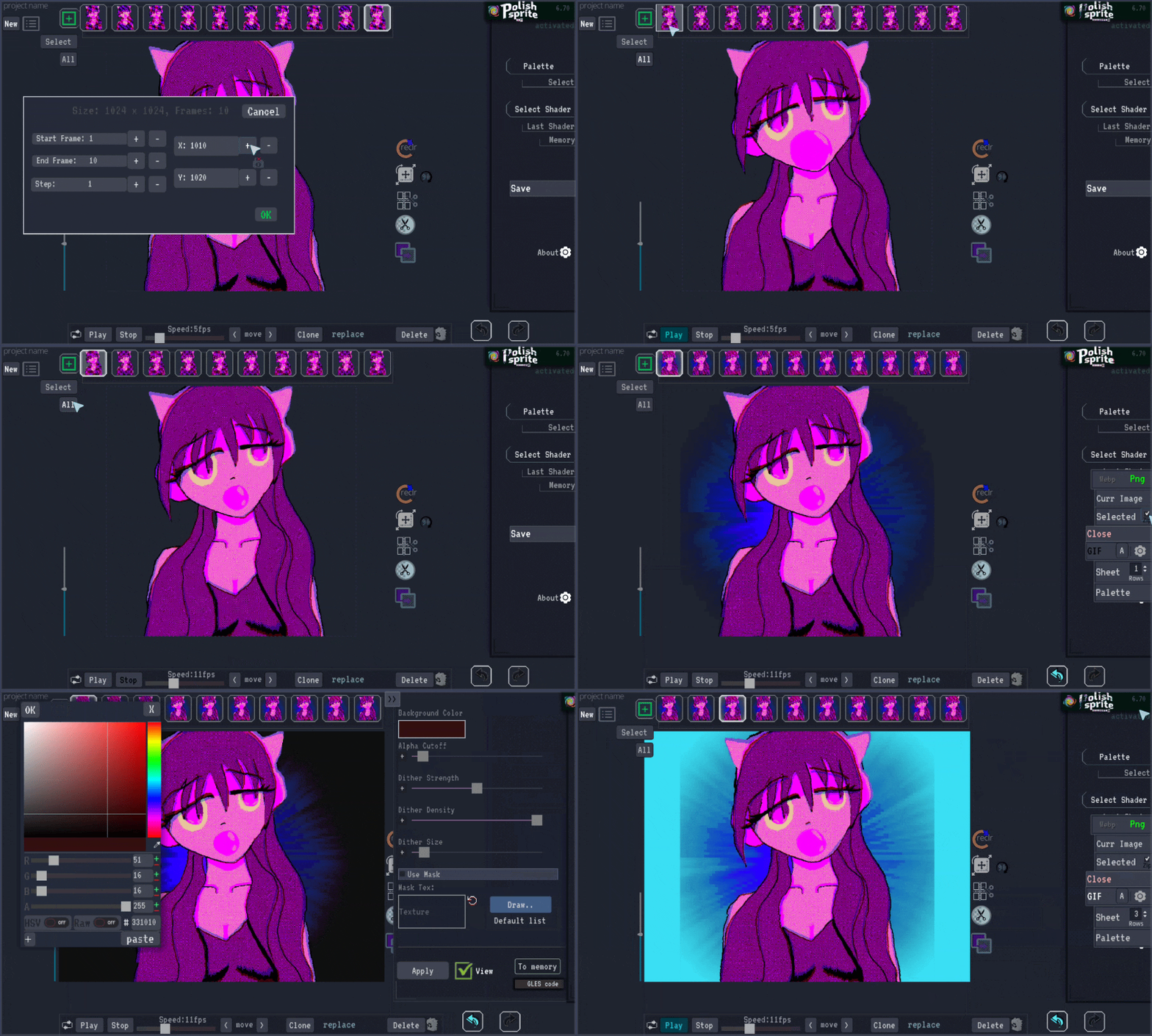
When you upload a GIF to PolishSprite, a settings window appears where you can adjust the GIF's resolution and frame count. The GIF is automatically split into individual frames, which appear at the top of the screen for easy access and editing.
Frame Selection and Management
The All button selects all frames at once. When you apply a selected shader, palette, or function (delete, clone, move), the effect will be applied to all highlighted frames. If no frames are selected, the effect is applied only to the currently active frame.
Bottom Panel Controls
The bottom panel contains essential controls for managing your GIF:
- Loop Button: Toggles looping on and off.
- Speed (fps) Slider: Controls the GIF's playback speed; this is the speed at which your GIF will be saved.
- Move Arrows: Reposition the selected frames to different positions.
- Replace Button: Swaps a selected frame with another from your gallery. You can undo this action later if needed.
Managing Deleted Frames
When you delete frames, they are moved to a Trash bin next to the Delete button, where they can be restored if needed. This provides a safety net in case of accidental deletions.
Saving Your Project
You can save your project in multiple formats:
- ZIP file: Contains all individual images for your project
- Sprite Sheet: Creates a grid of all frames (see our "Sprite Sheet" blog post)
- GIF: Saves your animated GIF with all applied modifications
Optimizing GIF Quality and Size
Before saving as a GIF, open the settings next to the GIF button to optimize your file:
- Set the Quality: Adjust the quality slider to balance file size and visual fidelity
- Colour Alpha Reserve: Pick a color not present in your image; this color will be removed
- Optimization Options: Check Size, use Global Palette, Optimise and Size, and Posterise to reduce the file size
- Gradients: If your GIF contains a gradient, use the A function (in the save menu). Since GIFs don't support transparency, this option provides an optimal solution by applying a diffusion dither to the gradient.
Edit Your GIFs Now
Ready to start editing your animated GIFs? Upload your GIF to PolishSprite and start applying these techniques today.
Upload Your GIF Now