Properly Scaling Pixel Art: Move/Size/Rotate Guide
Scaling pixel art while preserving its crisp, clean aesthetic requires specialized techniques. PolishSprite's Move/Size/Rotate function provides powerful tools to resize, move, and animate your pixel art with precision. This guide will walk you through the best practices for properly scaling your artwork.
Using the Move/Size/Rotate Function
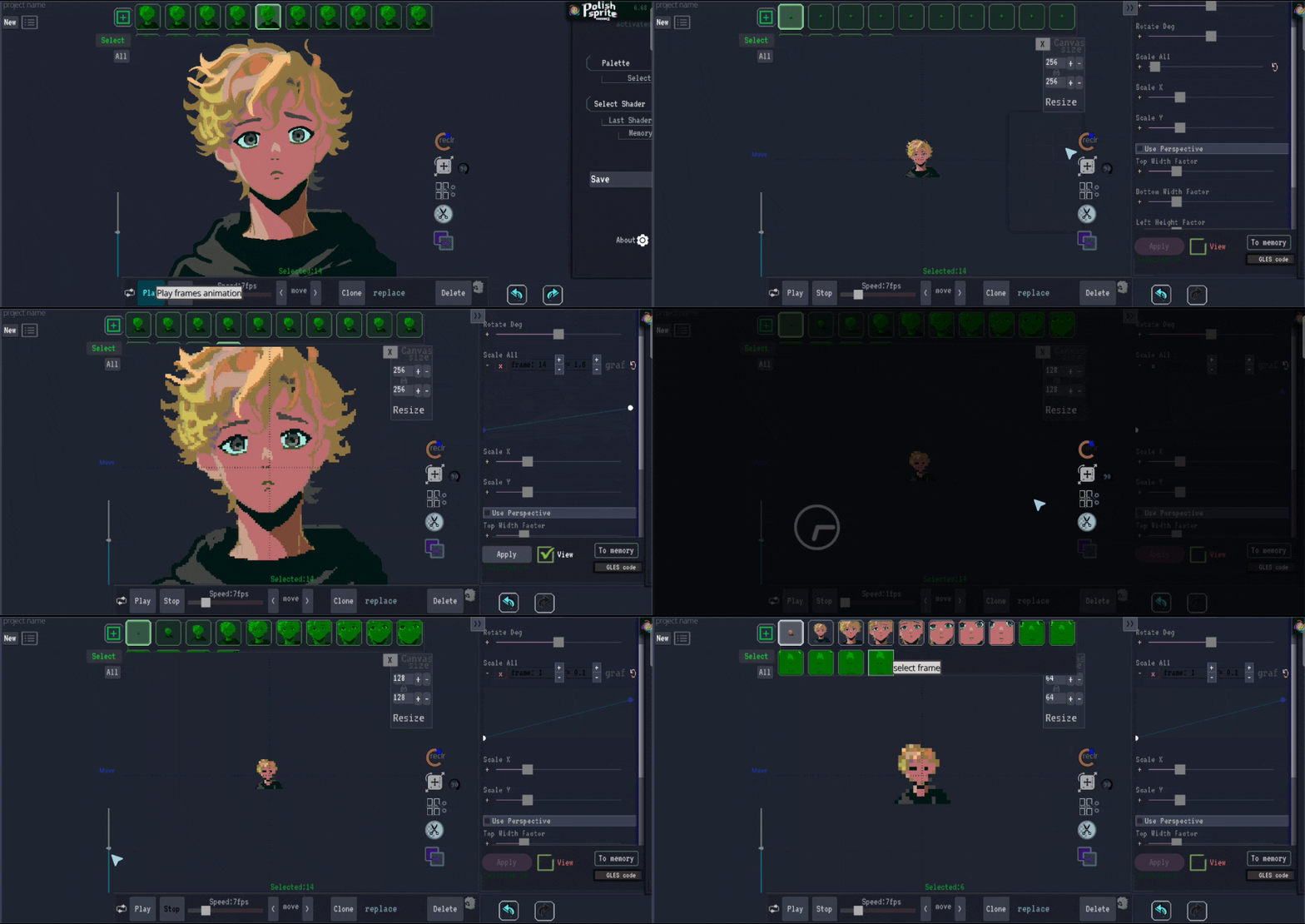
PolishSprite's Move/Size/Rotate function is designed specifically to handle the unique challenges of pixel art manipulation. To properly scale your pixel art:
- Access the function: Navigate to the Move/Size/Rotate function in the tools panel.
- Select all frames: If working with an animation, select all frames to ensure uniform transformation.
- Apply changes: Press Play to apply your scaling, moving, or rotating adjustments.
Animating with Graph Mode
One of the most powerful features for creating animated GIFs is the Graph Mode. This tool allows for precise control over how your transformations change over time:
- Enable Graph Mode: Click the plus icon next to the timeline to enable Graph Mode.
- Set keyframes: Define the start and end points for your animation.
- Adjust curves: Fine-tune the animation path using the graph controls.
- Preview and refine: Use the preview function to check your animation before finalizing.
Adjusting Canvas Size
Sometimes you'll need to change the canvas size separate from the image itself. PolishSprite provides a convenient Canvas Size function in a small, accessible window. Follow these steps depending on your needs:
Reducing Resolution
When reducing resolution:
- First, scale down your image using the "Scale All" feature so it fits within your target resolution.
- Then adjust the canvas size to match your new resolution.
- This approach prevents image content from being cut off during the resizing process.
Increasing Resolution
When increasing resolution:
- Adjust the canvas size to your desired new resolution first.
- Then use "Scale All" to increase your image to fill the new canvas size.
- This maintains the proportions and positioning of your artwork while expanding the canvas.
Pixel Art Scaling Best Practices
When working with pixel art specifically, consider these important tips:
- Preserve crisp edges: Use scaling methods designed for pixel art to maintain sharp lines.
- Integer scaling: When possible, scale by integer factors (2x, 3x) to maintain pixel integrity.
- Detail preservation: Pay attention to small details that might be lost during scaling.
- Color consistency: Ensure colors remain consistent across scaled frames in animations.
- Check for artifacts: Look for unwanted interpolation or blurring after scaling operations.
Advanced Techniques
For more advanced pixel art manipulation:
- Use the Move function to fine-tune the positioning of individual frames in animations.
- Combine the Size and Rotate functions to create complex transformations.
- Apply transformations selectively to specific frames rather than the entire animation.
- Use the preview feature extensively to ensure smooth animations.
Scale Your Pixel Art
Ready to properly scale your pixel art? Upload your image to PolishSprite and start applying these techniques today.
Scale Your Pixel Art Now