Life Hack: Change Palette of GIF
Here's a life hack to change the palette of your GIFs using PolishSprite's advanced color tools. This tutorial will help you efficiently recolor your animated images while maintaining quality and visual consistency.
Basic Steps
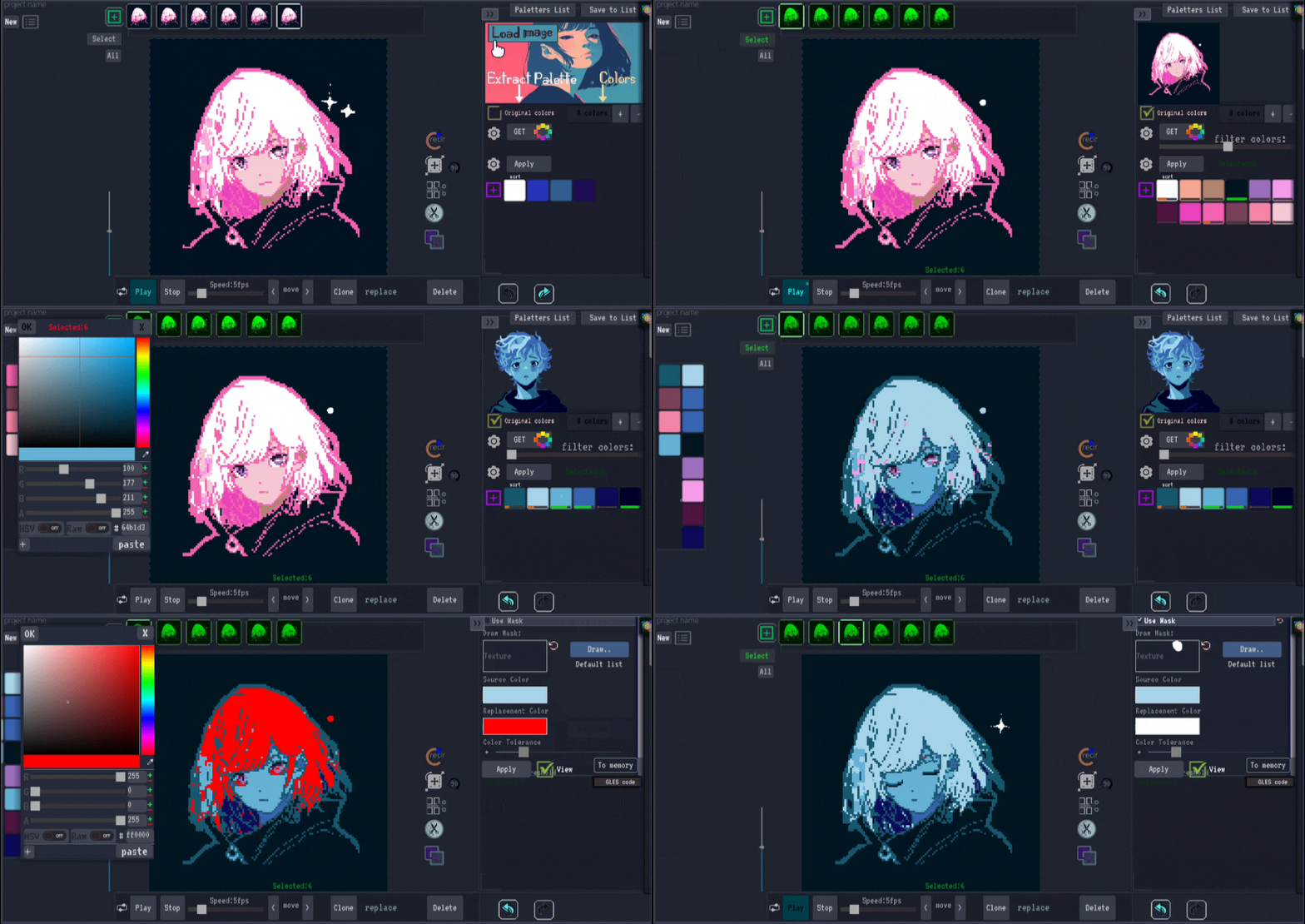
- Upload Your GIF: Start by uploading the GIF file you want to modify.
- Select All Frames: Make sure to select all the frames of your animation.
- Load a Reference Frame: In the color palette window, load a frame from your GIF to establish the original color palette.
- Extract Colors: Click "Original Colors" and then "Get" to extract the current colors.
- Disable Dithering: Disable "Dithering" in the settings near the "Apply" button to avoid unwanted color blending.
- Adjust Filter: Adjust the "Filter Colors" scale to control how similar colors are treated.
- Apply Changes: Click "Apply" to apply the new palette to your GIF.
Fine-Tuning Your Results
If a color doesn't match your expectations, use the "Undo" arrow to go back, then use the eyedropper tool to correct that specific color in the palette. This gives you precise control over each color in your palette.
Advanced Coloring Techniques
For more advanced modifications:
- Go to the palette on the left panel. Any color you change there will update across all selected frames.
- For even more precision, change the source image in the palette window. This lets you sample new colors accurately with the eyedropper tool.
- With the recolor function, you can use a mask to change the color of a specific area. For example, you can change the color of twinkling stars from blue to white.
- You can also save your custom palette via the "Save" menu for future use.
Try This Technique
Now that you know how to change the palette of your GIFs, try it yourself! Upload your animated images and experiment with different color schemes.
Try GIF Palette Editor Now