How to Change a Picture's Color Palette: Complete Guide
Changing a picture's color palette is a powerful technique that can transform the mood, style, and visual impact of your images. Our tool provides advanced options for palette extraction and customization. This comprehensive guide will walk you through the entire process.
Step-by-Step Instructions
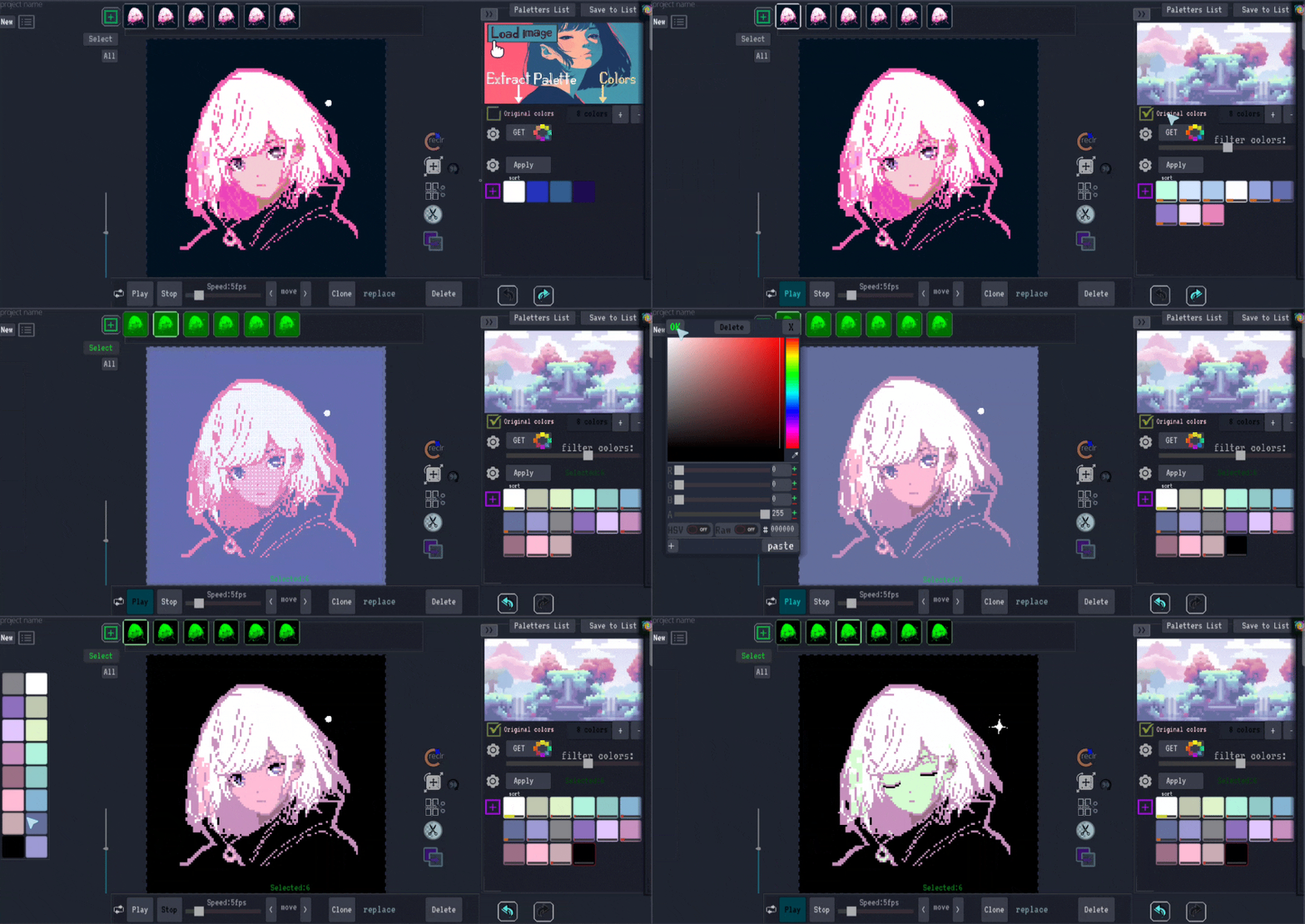
- Upload Your Image or GIF: Start by uploading the image or GIF you want to modify.
- Choose a Palette: Choose a ready-made palette from our collection, or upload an image to extract colors from.
- Preserve Original Colors: Check the "Original Colours" box to keep the palette colors exactly as they are. If you leave it unchecked, the app will adjust the colors to be more visually pleasing, which may differ from the originals.
- Extract the Palette: Click the "Get" button. The color palette from your image will appear below.
Pro Tips for Palette Extraction
- Use the settings next to the "Get" button to fine-tune how the palette is extracted.
- Each color square shows a percentage, indicating how much of that color is in your image.
- Use the "Filter Colors" slider under the "Get" button to control the number of colors in your palette.
Customizing Your Palette
Once you've extracted your palette, you can further customize it to suit your specific needs:
- Use the purple square to add a custom color to your palette.
- Adjust advanced settings like Dithering and Alpha next to the "Apply" button.
Applying Your Changes
- Apply the New Palette: Click "Apply". Your new palette will be applied to the image.
- Further Adjustments: The new palette will appear to the left of your image, where you can make additional adjustments.
Special Considerations for GIFs
For GIF files: If you select multiple frames, the palette changes will only apply to those specific frames. This allows for frame-by-frame control of your animated images.
Advanced Techniques
Want to experiment further? Here are some advanced techniques:
- Try different source images for palette extraction to achieve dramatically different results.
- Combine palette changes with other effects available in our tool suite.
- Save your custom palettes for reuse in future projects.
- Experiment with dithering settings to achieve different visual styles.
Transform Your Images Today
Ready to change your image's color palette? Try our palette tool now and see the transformation in real time.
Start Changing Palettes Now